

Image editing
Du kan redigera bilder direkt i verktyget. Du kan beskära bilden och ändra storleken.
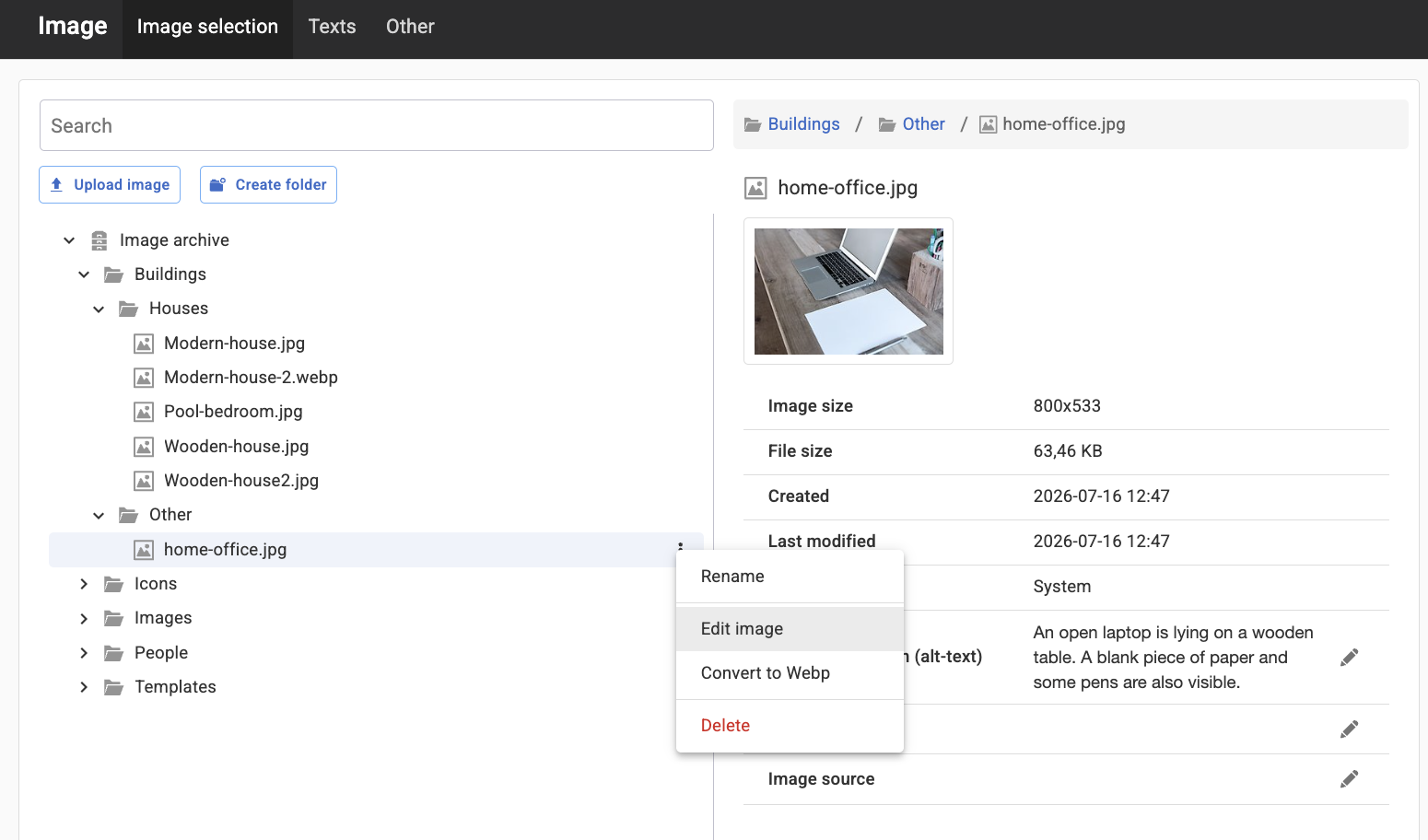
You can access the ability to edit images either by posting a new Image module on a page, double-clicking an existing picture module, or by going directly to the image archive via the navigator menu.
Once the image is selected in the image selector, right-click on it and select "Edit image".
The original image is not affected by your editing, but all changes are made to a copy of the original image. Your changes will only be saved when you choose to save the edited version. When you select "Edit image", a new view opens where you can crop, rescale, apply filters, or change the colour scheme of the image.
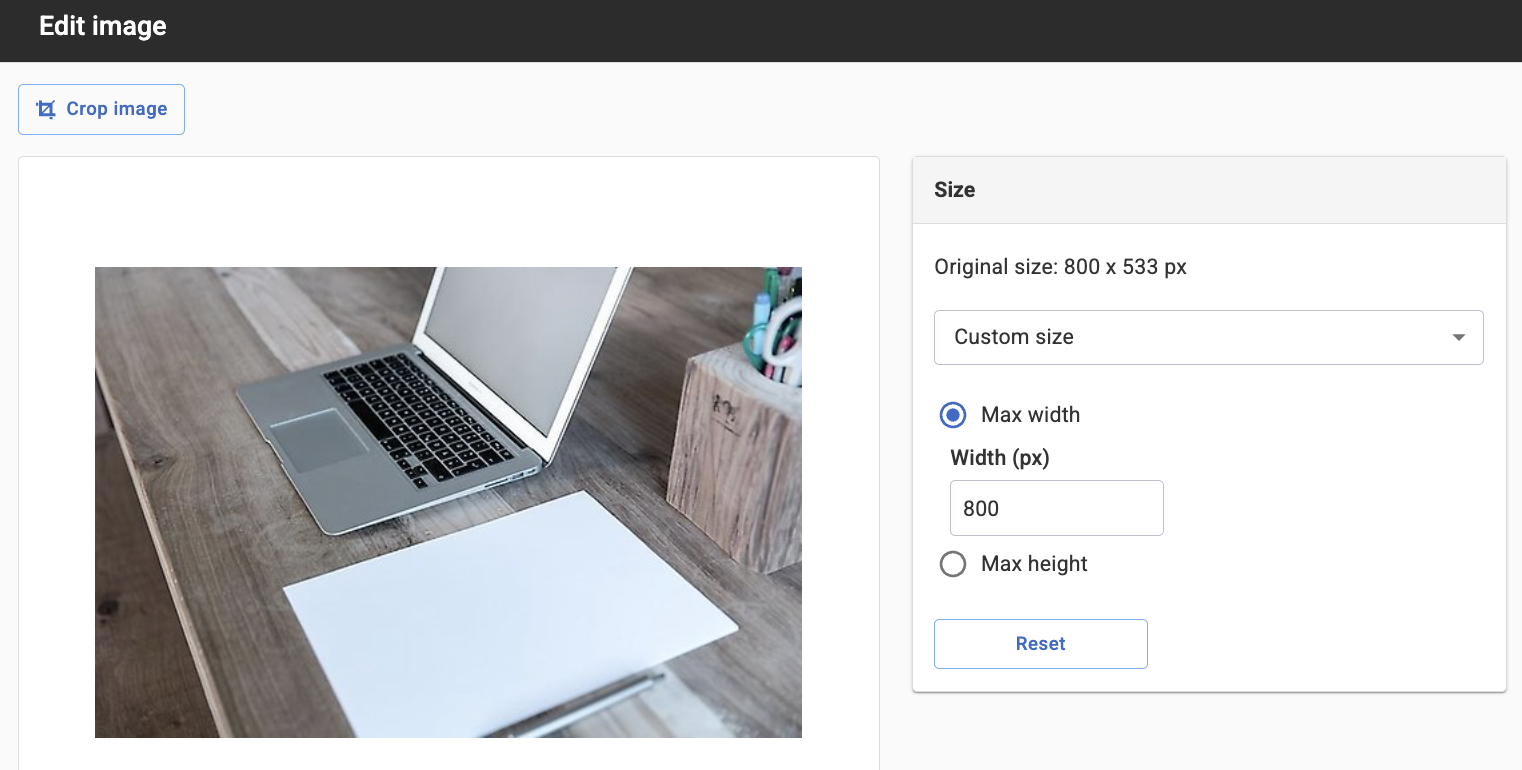
Crop image
Klicka på ikonen längst upp till vänster för att beskära markerat område på bilden. En rektangel ritas ut i bilden som du kan storleksändra genom att dra i kanterna eller flytta markeringen i bilden.
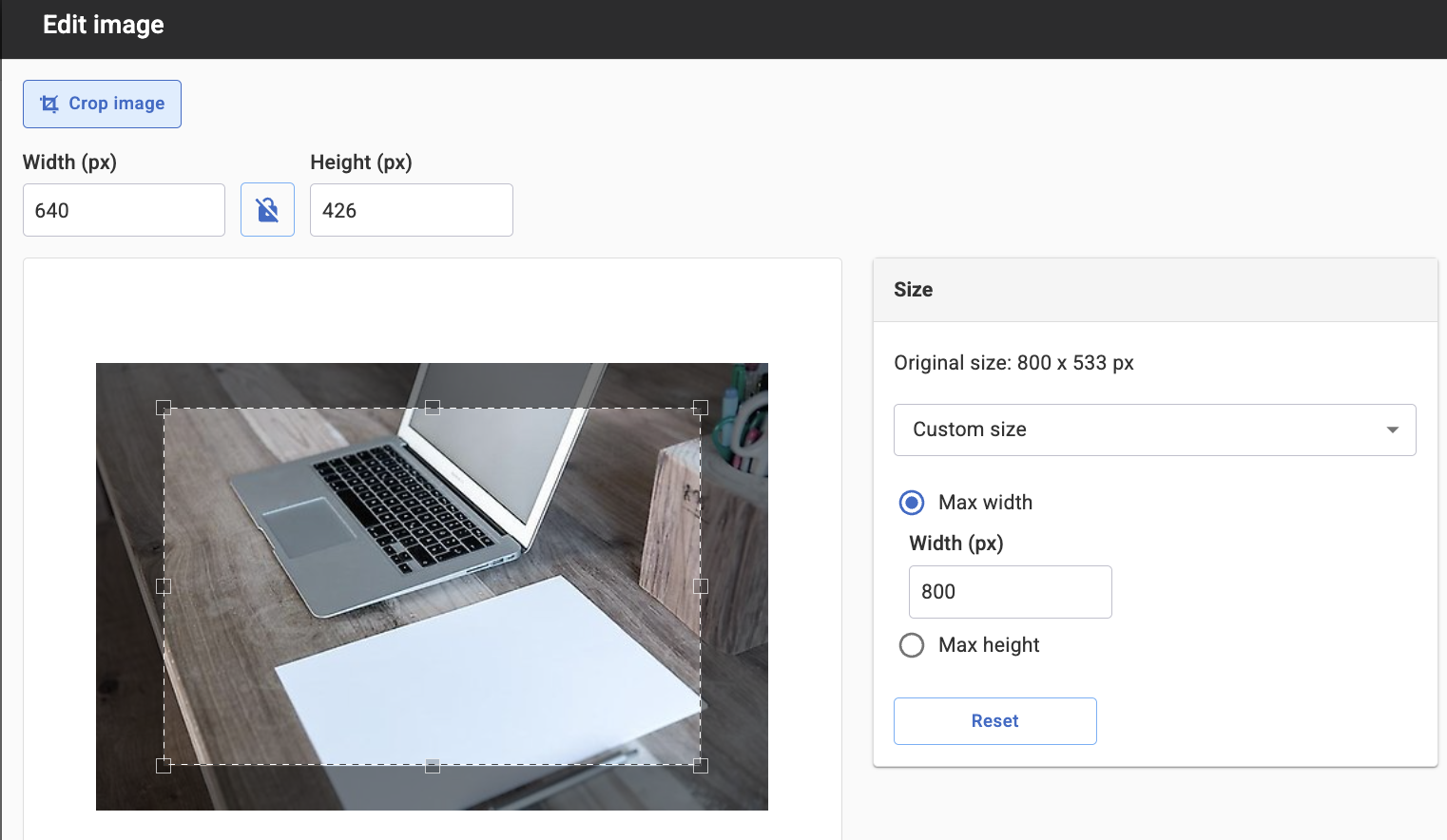
Om du har en markering som är exempelvis 640x426 så kan du klicka på minusknappen bredvid respektive mått för att få till den storlek du önskar, om du exempelvis vet att din yta är 600x250. Ikonen mellan bredd och höjd är "Låst bredd/höjd-förhållande" vilket innebär att bildens proportioner behålls när du ändrar storlek.
Du kan inte ange en bredd som är större än originalbildens bredd.
Size
You can resize the image in two different ways:
- Use an image size (if you’ve set it up on the website). These will then appear in the list under Custom Size:
- Enter a maximum width or maximum height. Type a number or click the up or down arrow to increase or decrease the value.
The page published:
 Print page
help.sitevision.se always refers to the latest version of Sitevision