

Image - Other
On the ‘Other’ tab, you can configure settings for image size and image interaction.
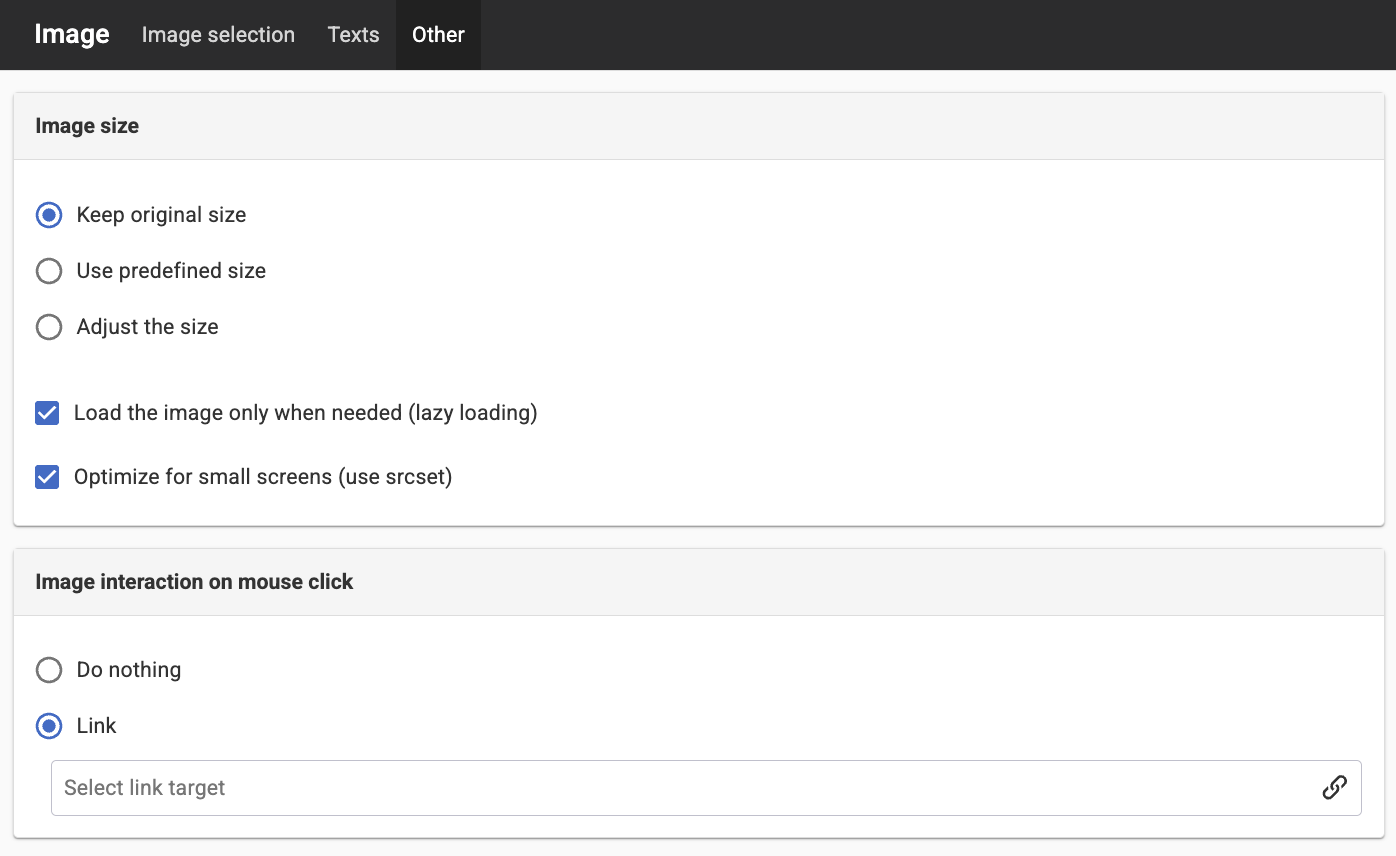
Image size
Keep original size
The original size of the image is retained and displayed on the page.
Use predefined size
Predefined image sizes are an option where you can set the image sizes in a central location, which you can then choose from a list. You can then choose to rescale the image to a specific image size that appears in the list.
This option is only visible if image sizes have been set on the website and may be preselected depending on the settings in the website settings.
Adjust the size
You can customise the image size yourself by entering the maximum width and height here. The image will be resized to the maximum width or height depending on its dimensions, but it will always retain its aspect ratio. Click the up or down arrow to increase or decrease the value.
Load the image only when needed (lazy loading)
If you tick the ‘Load the image only when needed" box, the image will only be loaded when there is a need to do so – this is known as ‘lazy loading’. For example, if a page is longer than can be displayed on the visitor’s screen, images further down the page will only be loaded when the visitor scrolls down to the image.
Optimize for small screens (use srcset)
If you have enabled responsive web, responsive images will also be enabled. That is, if an image module is added, it should be given an srcset in addition to src with scaled-down versions of the image. If you have "Manage functions for developers" permission, you have the option to disable this for individual images.
Image interaction on mouse click
Do nothing
If you select this option, nothing happens when the visitor clicks on the image.
Zoom
If you have chosen to use a predefined size or to customise the size, the option to zoom in on the image will appear. The image will then be zoomed in on the page, but it can never be larger than the original image. The zoom function takes the image being used and adjusts it to fit the size of the visitor’s browser window. For best results, ensure the original image is the same size as, or slightly smaller than, the width of the website.
If you have chosen to display the image at its original size, the zoom option will not be displayed.
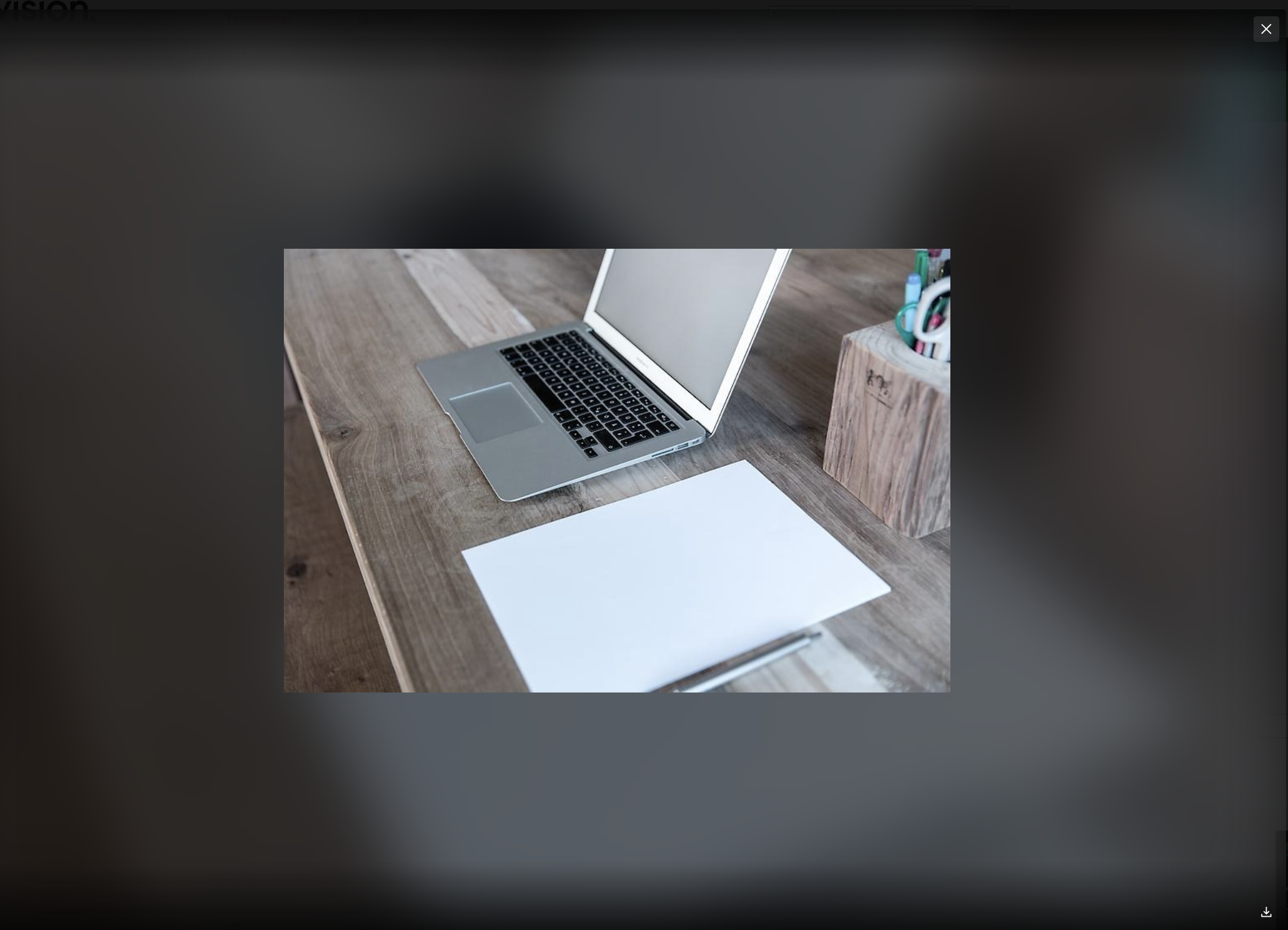
För att återgå till normalt läge, stäng ner förstorningen med krysset längst upp till höger på bilden.
Du kan också ladda ner bilden med hjälp av ikonen längst ner till höger.
Denna teknik bygger på javascript. Fungerar inte zoom-effekten innebär det kanske att webbläsaren inte har javascript aktiverat. Bilden förstoras då i det fönster som är öppet.
Zoom fungerar inte på SVG-bilder.
Link
Select this option to create an image link—that is, to turn the image into a link. Click the icon next to "Select Link Destination." This opens the link dialog box, where you can select the link type and destination.
The page published:
 Print page
help.sitevision.se always refers to the latest version of Sitevision