

Version Control for a File
Version Control
You'll only find this icon on a file. It's a setting that lets you enable version control for that specific file.
If you uncheck the "Enable version management" box, all versions of the file will DISAPPEAR
Versions
Once you have enabled version control for the file, additional information about the file will be displayed.
When a file has versions, a list of the available versions appears below the information. Here, you can specify which version should be active. If no version has been designated, the latest version is active; otherwise, the designated version is the active version.
The active version is highlighted with a green background.
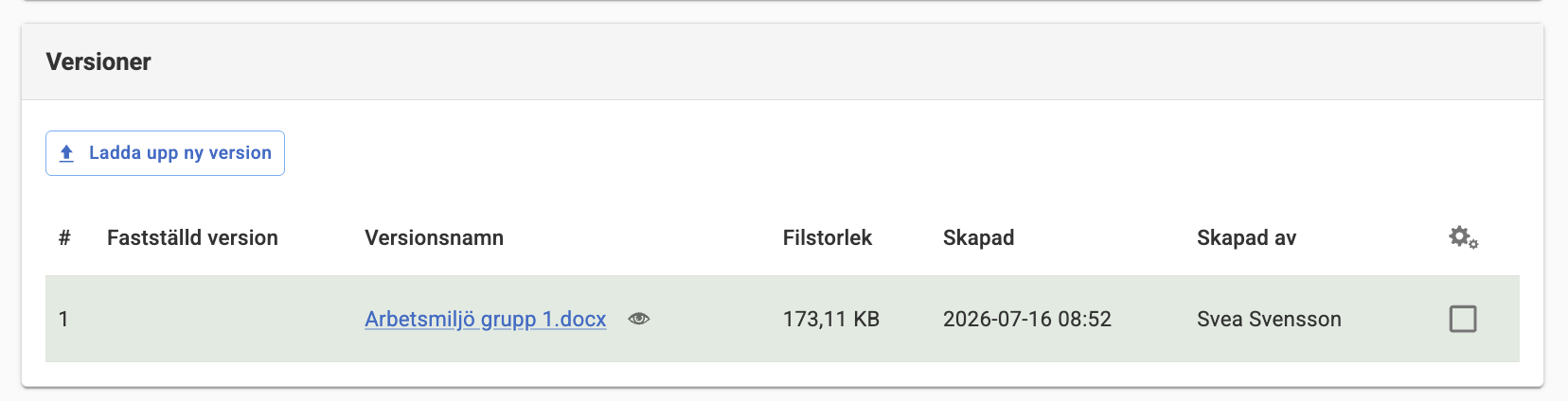
Upload a New Version
Here you can upload a new version of the document by clicking the "Upload new version" link.
The file will be automatically re-indexed when the active version is replaced. The active version is either the approved version or the most recently uploaded version (if there is no approved version).
# (Version number)
The file’s version number is displayed here.
You cannot overwrite a versioned file; instead, a new version is created.
Version Name
The name of the file is displayed here. The name of the file itself will never change, even if you switch to a version with a different name, to ensure that the link to the file remains valid.
After the version name, an eye icon appears to preview the document. The preview works for Office files and PDFs, provided that the following system requirements are met. If not, no eye icon will appear.
System Requirements for Document Preview
For document preview to work, the following is required:
- LibreOffice must be installed on the server where Sitevision is running if you are using Linux
- OpenOffice is installed on the server where Sitevision is running if you are using Windows
A third-party process is used for previewing, and it is launched when the Sitevision service starts up.
File size
The file size is displayed here.
Created
The "Created" date shows when the document was uploaded to the file archive.
Created by
"Created by" shows who uploaded the document to the file archive.
Settings
Five different settings are displayed under the gear icon:
- Select All – selects all versions of the file
- Deselect All – deselects all versions of the file
- Set Version – Here you select which file should be the approved version of the document. A checked-in version is the official version of a file. It is the version that is indexed and the one that visitors can download.
The checked-in version is indicated by a green background and a checkmark to the left of the file name.
To check out a version, you must have Write permission for the file.
- Compare – compare the two selected files. A new window opens with a preview. All changes are marked (with a line) on the left margin. Added text is underlined, and deleted text is struck through.
The Compare feature works with Word files provided that the system requirements are met.
If you copy a versioned file, the versions are NOT copied along with it. The file itself becomes the active version (i.e., the checked-in or latest version of the file).
If version control is used for a JavaScript or CSS file, Sitevision checks whether that file is used in any templates. If it is, we rebuild the result and ensure that the new version is used. This happens completely automatically.
This feature requires a "File Version Management" license.
The page published:
 Print page
help.sitevision.se always refers to the latest version of Sitevision