

Show trashcan
In Sitevision there is a trashcan and you can access it by clicking on browse in the sidebar. You can see the trashcan in your structure.
Items that are moved to the trashcan:
- Web pages
- Link pages
- Structure pages
- Folders
- Images from the image archive
- Files from the file archive
- Archive
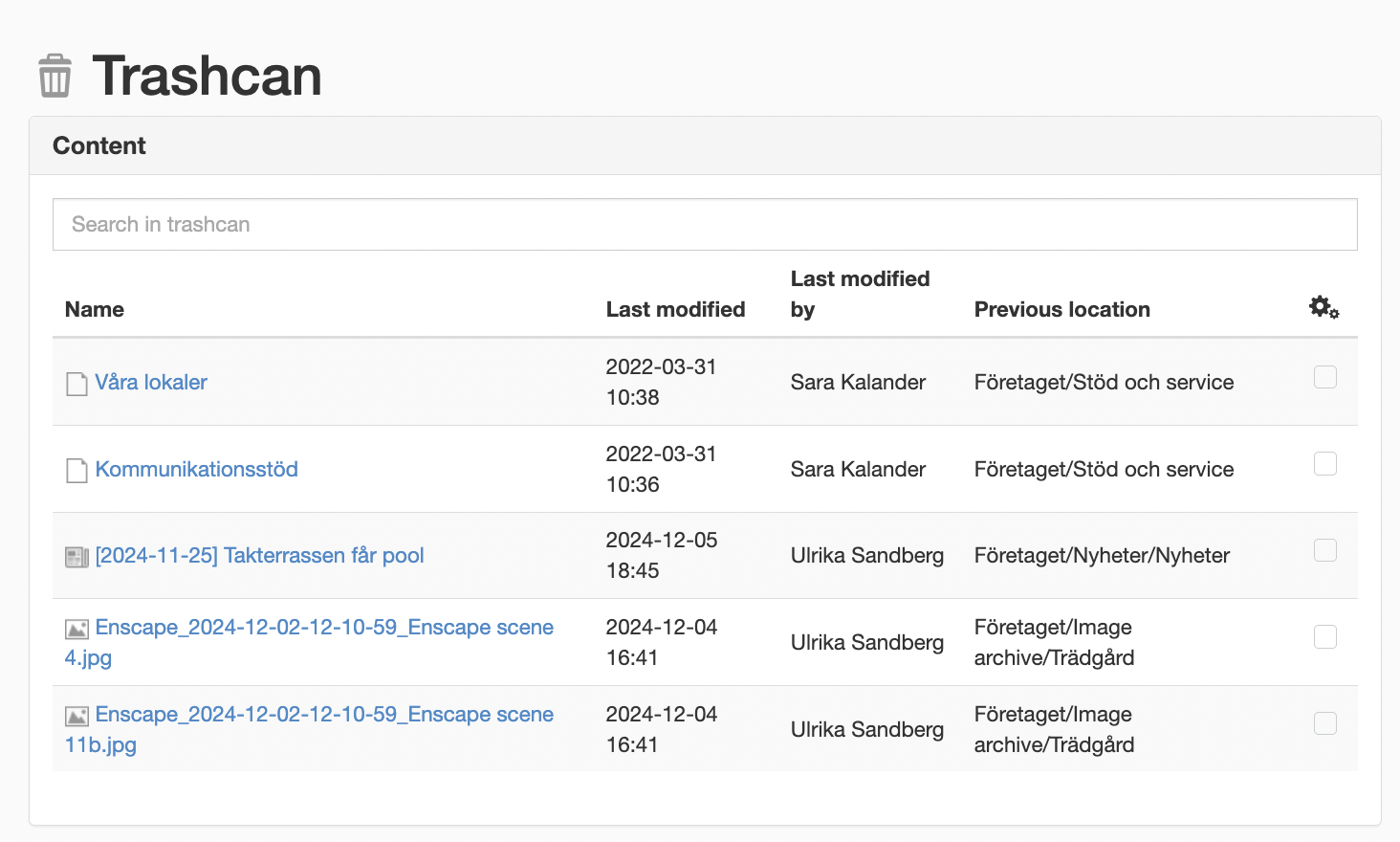
There you will see a view with the following:
- Search in trashcan - Here you can search for items in the trashcan. You search from the Name column
- Name - Name of the item
- Last modified - Date when the item was last modified
- Last modified by - The person who last modified the item.
- Previous location - This shows the path to where the item was before it went to the trash.
Recover from trash
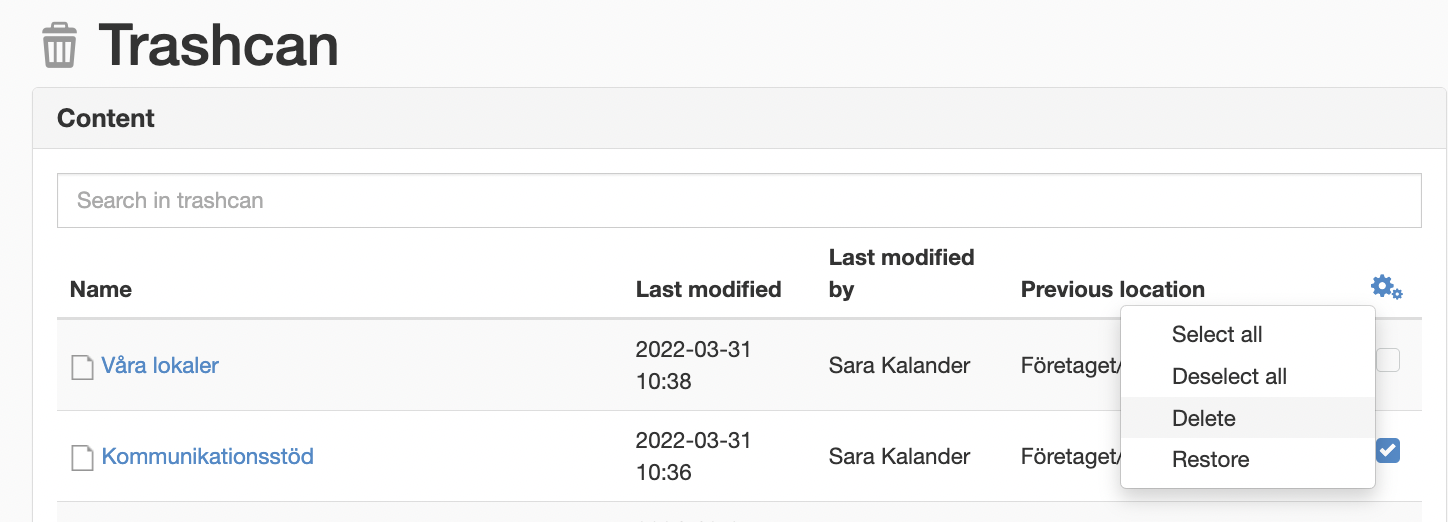
If you accidentally delete any of the items listed above, it will end up in the trash. If you right-click on the item, you can select Restore. This will put the item back where it was when it was deleted. You can also restore several items at the same time. Click the checkboxes for the items you want to restore, then select Restore.
Emptying the trashcan
Make sure to create an internal routine for when you empty the trash, for example once a month.
To empty the trashcan, select it, right-click and choose "Empty trashcan".
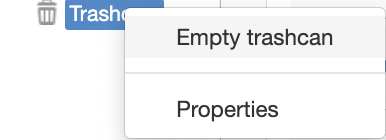
When you empty the trash, all information is removed from the database. It cannot be restored.
Indexing
The trash can contents are only searchable in the trashcan in edit mode.
Authorization
To gain access to the trashcan, the user must have at least "write" access to the website (house).
Modules do NOT end up in the trashcan.
The page published:
 Print page
help.sitevision.se always refers to the latest version of Sitevision