
The WebDAV Panel
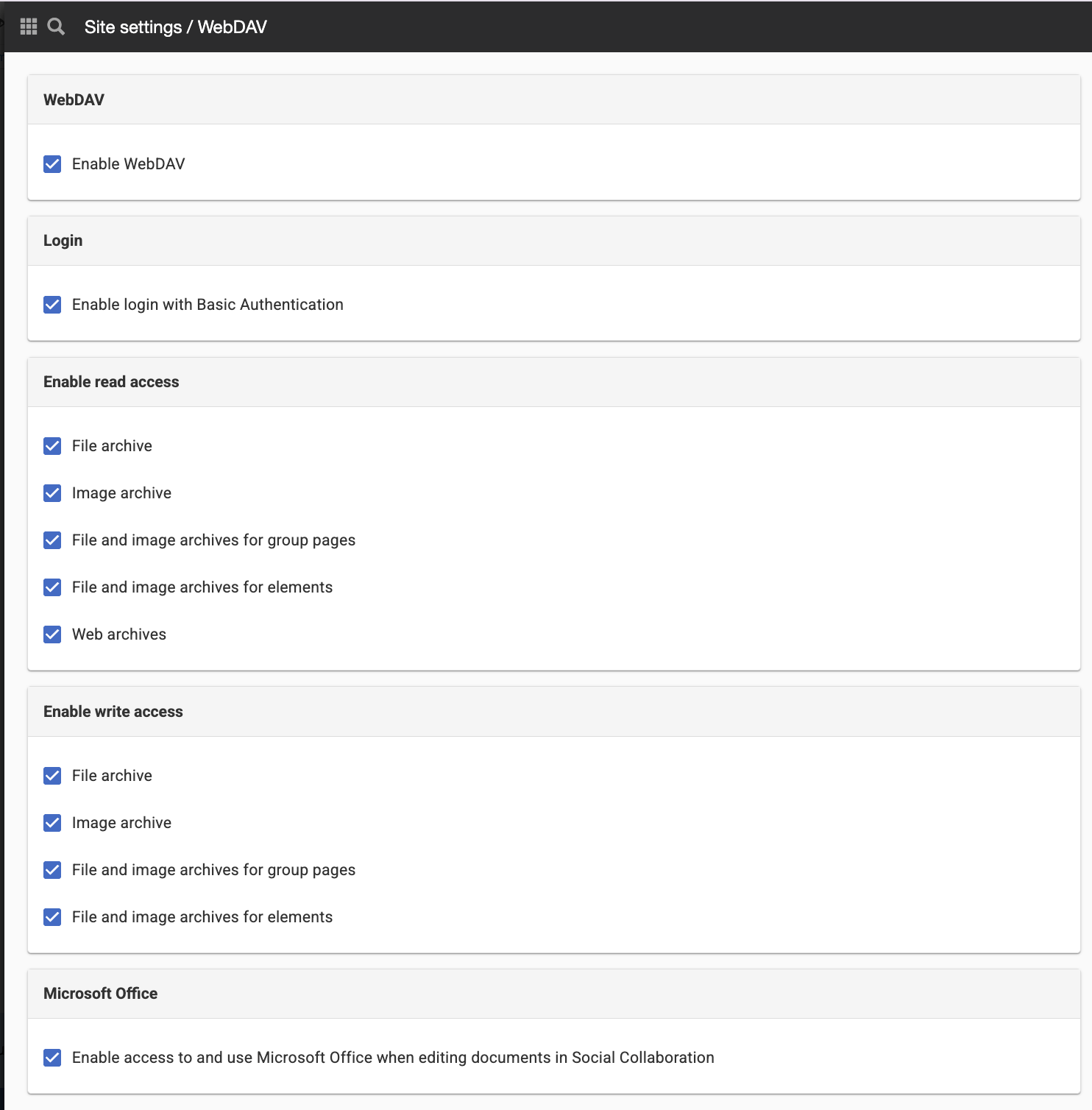
Here you can make settings regarding WebDAV for the website. It is possible to turn off the entire function by unchecking the "Enable WebDAV" checkbox.
WebDAV
Enable WebDAV
With this checkbox you choose to turn on and off the entire WebDAV. By default this is checked, but if you do not want to allow WebDAV, uncheck the box,

The WebDAV category will not be displayed under /admin if you have turned off the feature on this page.
Login
Enable login with Basic Authentication
If you uncheck this box, the login box will not be displayed if any visitor accesses <site address>/webdav/data.
Enable read access
Here you uncheck the checkboxes for which you do not want to allow reading. By default, all boxes are checked. Only settings you have a license for should appear here.
- File archive - allows access to files in the file archive via WebDAV
- Image archive - allows to access images in the image archive via WebDAV
- File and image archive for group pages - allows to access files and images in groups via WebDAV

If you turn off reading in the file archive, html files will no longer have webdav addresses. This means that they will get new addresses. Relative links in html files will then no longer work.

The Group Files setting requires the Social Collaboration license and that the feature is enabled on the website.
- File and image archive for elements - allows to access files and images in elements via WebDAV
Setting for Element requires the Element license
- Web archives - allows you to access web archives via WebDAV
Setting for Web Archiving requires the Web Archiving license.
Enable write access
Here you uncheck the checkboxes for which you do not want to allow write access. By default, all boxes are checked. Only settings you have a license for should appear here.
- File archive - allows to upload files in the file archive via WebDAV
- Image archive - allows uploading to the image archive via WebDAV
- File and image archive for group pages - allows uploading files and images in groups via WebDAV
Setting for Element requires the Element license
- File and image archive for elements - allows to upload files and images in elements via WebDAV
The Group Files setting requires the Social Collaboration license and that the feature is enabled on the website.
By default, all boxes will be checked except "Enable access to and use Microsoft Office for editing documents". This setting should only be checked for those customers who already had the setting "Use Microsoft Office when editing documents" enabled under Website Settings -> Social Collaboration before the upgrade.
Microsoft Office
Enable access to and use Microsoft Office for editing documents
Check this box if your organization uses Microsoft Office. It is required for the Edit File button to appear on group files:
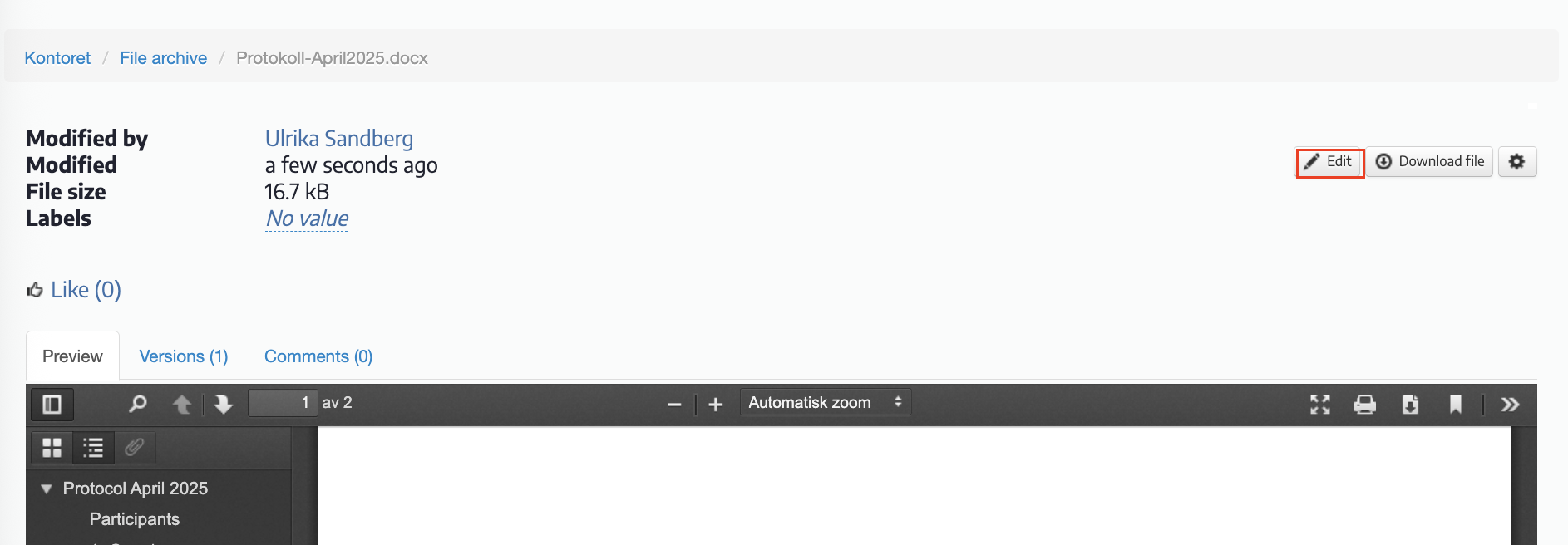
This setting requires a Sitevision intranet license and that you have activated the "Social Collaboration" feature in the website settings.
To access this tab, you need "Write" and "Manage Site Settings" permissions.
Denne siden ble publisert:

help.sitevision.no henviser alltid til den nyeste versjonen av Sitevision